
דילוג לתוכן
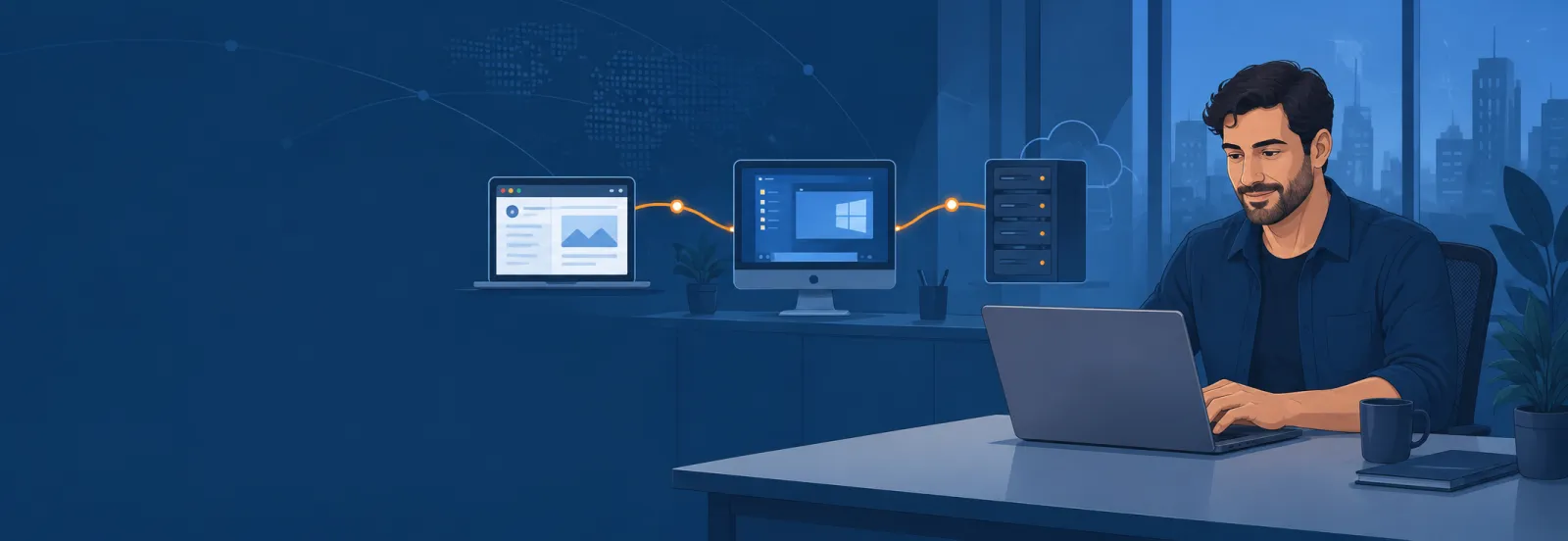
A technician connecting to remote computers and a server
Work from home and provide remote support with ease

Your office stays put.
Work from anywhere.

The computer is in the office. You are at home.
Your familiar workspace, wherever you are

Your workspace. Even at home.

Your software and files remain on the office computer. Connect lets you access an authorized device and work in your familiar environment. Use the same tool for remote support when your team needs help.

Sign in and connect →
Computers everywhereOffice, home, branch or customer.
Waiting support requestsUsers need a solution now.
Scattered toolsPasswords, applications and windows.
Control matters tooPermissions, records and security.
How do you connect?

From home to your office computer in four steps

Choose the computer, complete authentication and permissions, and connect. Once configured, unattended access lets you work even when nobody is beside the office computer.

Choose a computer

From your address book or central management environment.
Authenticate and authorize

Using the configured permissions, password and security controls.

Start a connection

From the application or browser, depending on your plan.

Work and document

Work, transfer files and record the session when required.

One connection. A clear route to resolution.
My devices● 3 available
▣
Main office computerWindows · Available
▣
Accounting serverWindows Server · Available
▣
Service workstation 04Windows · Offline
All connections in one place

Your computers together. Your connection from home.

View devices, start connections and track activity through a central web interface. The managed plan supports browser access to Windows computers without installing Connect on the technician computer.

✓Organized access to devices and active sessions
✓Activity history and connection reports
✓Central deployment of organization-specific agents
Your support toolkit

The same workspace. A different location.

Screens, files and remote tools help you continue your working day from home.

Multiple office monitors? See them remotely too.

Switch between remote monitors or view them together to navigate your familiar workspace from home.

Get files where they need to go

Transfer files quickly and securely during the session without interrupting support or switching to an external service.

Review what happened

Record support sessions and remote meetings, then replay them in the built-in player for documentation, training and review.

Work privately

On the managed plan, temporarily black out the remote screen and lock input during sensitive support work.

The remote screen is blacked out during support

Security built into the connection

Two-factor authentication, SSL-encrypted internal and external connections, and password protection add layers of security around remote access.

✓
Concurrent connectionsManage multiple sessions at once
Text and voice chatCommunicate in real time
Unattended accessFor authorized devices
Remote printingPrint from the remote computer to your local printer
CollaborationMultiple team members in one session
Built for the real working day

Work from home. Support from anywhere.

Start with home access to your office computer, then support customers, branches and servers according to the permissions configured.

01

Customer support

Connect, see the issue and help without a site visit.

02

Working from home

Access your office computer, files and familiar workspace.

03

Branches and field teams

Support remote colleagues and keep work moving.

04

Server maintenance

Access authorized systems even when nobody is beside them.

05

Knowledge sharing

Join an existing session to solve problems and share expertise.

Secure
connection
Two-factor authentication
SSL encryption
Password protection
Access permissions
Security that supports your work

Remote access. Permissions under your control.

Working from home starts with authorized access to your office computer. Connect combines authentication and encryption with control over who connects and how.

  • Two-factor authentication strengthens user identity checks
  • SSL encryption for internal and external connections
  • Device passwords and access permissions
  • Black screen and input lock for sensitive work on supported plans
Access for authorized users only
Before and after

Less searching for connections. More time to work.

Select the side you want to explore.

Before: switching between tools

  • Search for computer and user details
  • Move between applications and windows
  • Ask users to send files another way
  • Limited visibility into who connected and for how long
  • Travel to perform a simple task

After: everything in one view

  • Choose a device from an organized list
  • Connect through the application or browser
  • Transfer files within the session
  • Review connection history and reports
  • Resolve issues remotely and save time
Frequently asked questions

Working from home? Good questions.

Can I connect when nobody is in the office?

Yes. Unattended access lets you connect to devices configured and authorized in advance without requiring manual approval each time.

Can I connect through a browser?

The managed plan supports access to Windows devices directly through the web console without installing Connect on the computer you connect from.

Which operating systems are supported?

Connect to Windows and macOS computers and access devices remotely from iOS and Android. Exact feature availability depends on your plan and operating system.

Will I see all my office monitors?

Yes. Switch between monitors connected to the remote computer or view them together.

Can support activity be recorded?

Record sessions and replay them using the built-in player. The managed plan also provides reports on the user, destination and session duration.

How do I choose the right plan?

Features vary across Free, Pro and managed plans. We will review device counts, connection types and central management requirements with you.

Your office, one connection away

Build a convenient way to work from home.

Tell us how many people need remote access and which computers they use. We will demonstrate the workflow and explore the right fit for everyday work and remote support.

  • A short, focused demonstration
  • Tailored to your team and environment
  • No commitment at the enquiry stage
Thank you. Details were captured in this demonstration.