
Accidental deletion
An employee deletes an important message, folder or file.
Additional backup for email, files and collaboration in Microsoft 365 and Google Workspace. When something is deleted or goes wrong, find the copy you need and recover it.
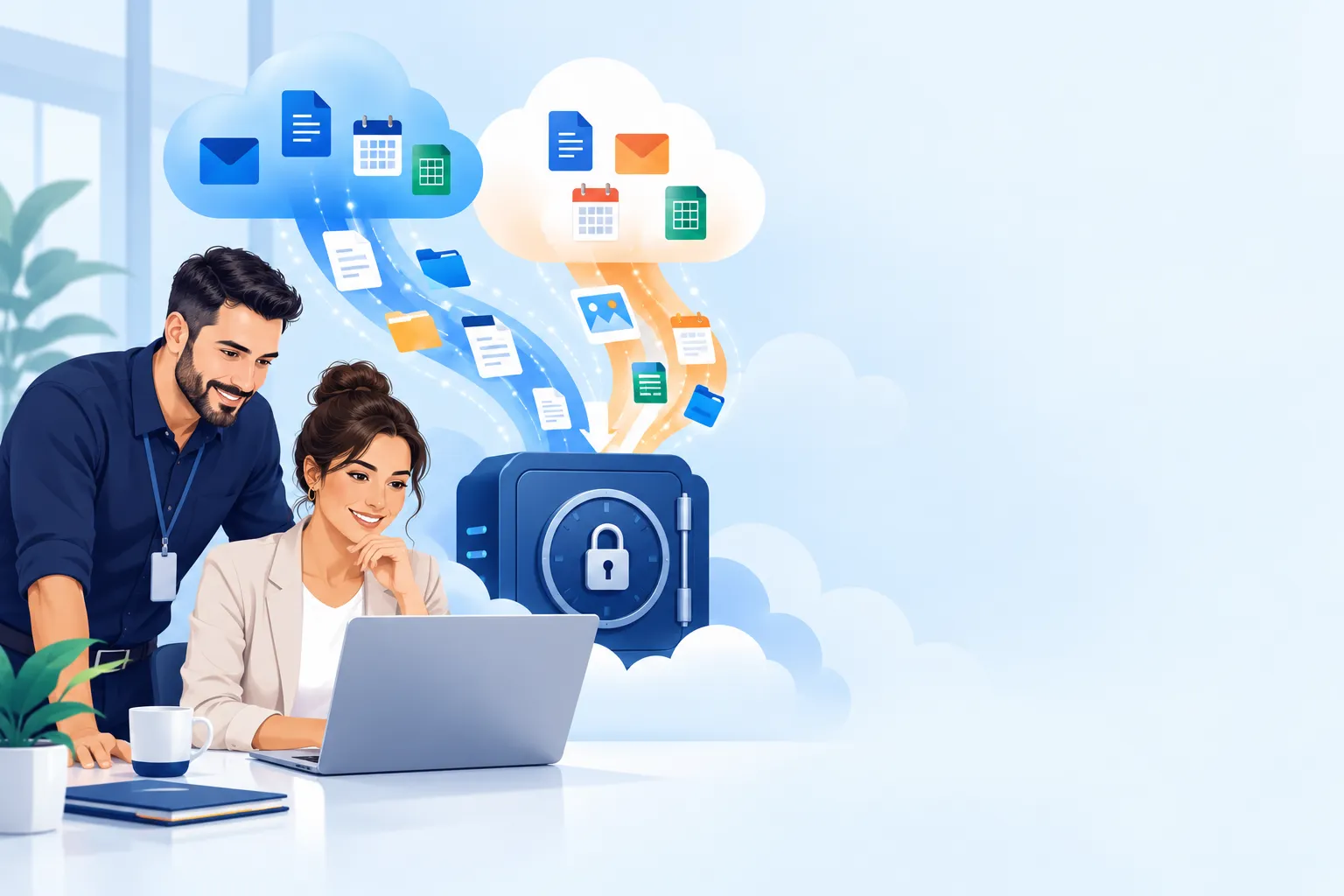
Microsoft and Google keep their services running. Your business still needs to understand what is retained, for how long and how deleted information can be recovered. Additional backup provides a separate copy.
A deletion on your computer may sync to the cloudAn employee deletes an important message, folder or file.
Malware encrypts files, and the changes sync to the cloud.
An incorrect change propagates across users and devices.
An authorized user deletes or modifies information.
Data is not retained for as long as the business needs.
Google Drive and OneDrive keep files synchronized. That is useful for collaboration, but deletion or ransomware damage may sync too. A separate backup can preserve an earlier copy to recover from.
An illustrative scenario, not a guaranteed outcome. Protection depends on configuration, permissions and backup retention.
Delete an important file locally, and synchronization may apply that deletion to the cloud. The same can happen when ransomware encrypts accessible files. This does not mean every attack begins in Drive or affects every cloud file. It means a synchronized folder alone is not an independent backup for every situation.
Compromising a computer does not automatically give an attacker control of a Google or Microsoft account. Stolen credentials or an existing signed-in session may, however, expose data. Changes to passwords or recovery details can also affect your access. Account recovery and file recovery are separate tasks: an independent backup can help recover files, but it does not unlock a compromised account. Google guidance for a compromised account
Deleted items and earlier versions may be recoverable using built-in tools. Eligible Microsoft subscriptions offer OneDrive restoration to a point within the previous 30 days. Google also offers version recovery and, in supported environments, ransomware-related synchronization controls. Availability and retention depend on the service, file, plan and configuration. Check your recovery options before an incident.
Independent backup preserves earlier copies, provided the data was included and is still retained. Protect those copies with separate permissions, additional authentication and recovery testing. CISA also recommends protecting backups and verifying that they can be used. After an incident, contain the damage and secure the environment before restoring files. Ransomware response guide in Hebrew
Service availability and security matter, but they do not guarantee recovery of every deleted file. Keep a separate backup matched to your data and retention requirements.
Backups copy data directly from the cloud service. No software is needed on every computer and no additional office server is required. Manage backup through your browser.
No installation on every computer · No extra hardware · Browser management
From an important message to shared team folders, these are the data types covered by the service.

Find a copy saved before the incident, select the email or file and restore it to its original or another supported location.
Search by user, folder or date.
Choose the version before the incident, which may not be the latest.
Check that the recovered data is intact.
One dashboard shows running backups, issues requiring attention and where to find the email or file you want to recover.
IT service providers can monitor and manage backups for several customers from one place.
| Protection area | Microsoft 365 | Google Workspace |
|---|---|---|
| Business email | ✓ Outlook / Exchange Online | ✓ Gmail |
| Personal files | ✓ OneDrive | ✓ Google Drive |
| Team content | ✓ SharePoint and Teams | ✓ Shared Drives |
| Contacts and calendars | ✓ Contacts & Calendar | ✓ Contacts & Calendar |
| Recover an email or file | ✓ Depending on data type | ✓ Depending on data type |
| Browser management | ✓ Monitoring and recovery | ✓ Monitoring and recovery |
Damage on a computer may sync to the cloud. An application with account access can also modify data. Separate backup lets you search for a healthy earlier copy and restore it, provided it was backed up and remains retained.
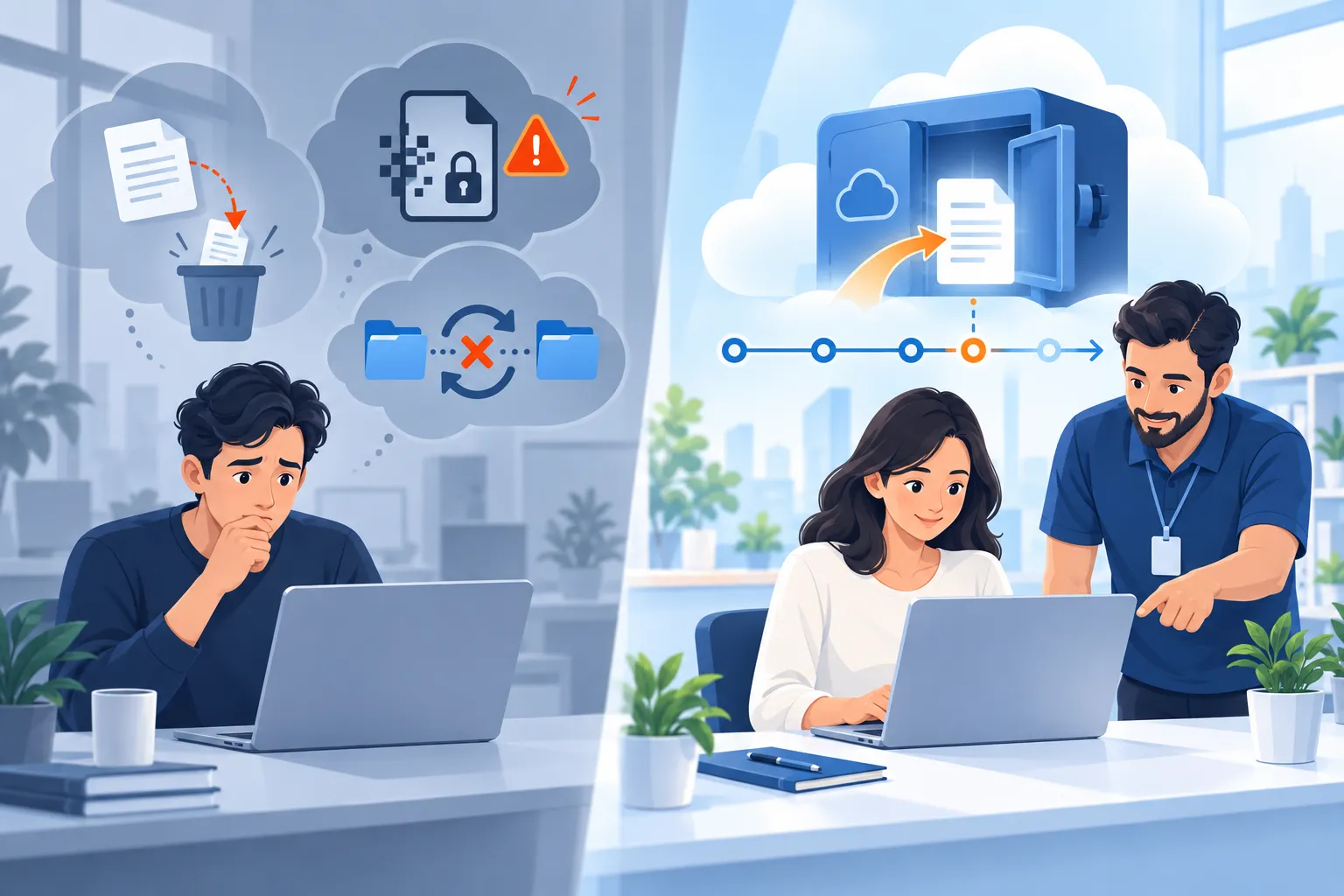
Email and files can be deleted accidentally in the cloud, and local changes may sync too. Independent backup preserves an additional copy from before the incident.
They can help, but recovery scope and retention are limited. Independent backup adds another searchable copy according to your retention settings.
Yes. Recover what is missing without reverting your whole workspace. Exact options depend on the service and data type.
No. Backup runs directly between cloud services and is managed through your browser. You do not need software on every computer or another office backup server.
Yes. IT teams and service providers can centralize backup monitoring and management. We will tailor the workflow to your customers and requirements.
See in a personal demonstration how to protect Microsoft 365 and Google Workspace and recover what matters.
Arrange a personal demonstration