Replacing a disk and want to take the system with you? Or preparing for the day when the computer won't start at all? This is where disk cloning and Image backup come into play. File backups help save essential information, but when the disk or operating system is also damaged, you need to understand how to restore the work environment. Both methods can help — in different ways.
Copying or saving an image
- Clone to a direct target
- Image for future recovery
- Check boot and applications
Both cloning and Image backup can preserve data and the operating system. To choose, you need to understand the result of each action and how it is used. Similar names do not always mean you get the same thing.
Cloning and backup image: what exactly is saved?
What is disk cloning?
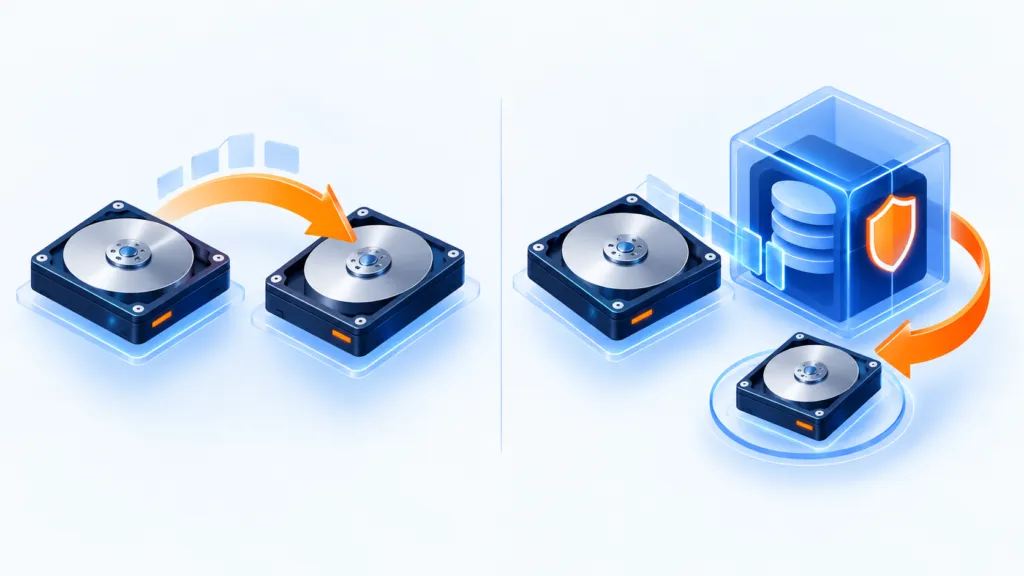
Cloning, Clone, copies the content of one disk to another: data, boot records, settings, and files, as well as layouts. In the approach described in the original source, the source and target are connected and copied directly, without first saving an image file. The resulting disk can be used as the main disk or kept as a copy.
What is an Image backup?
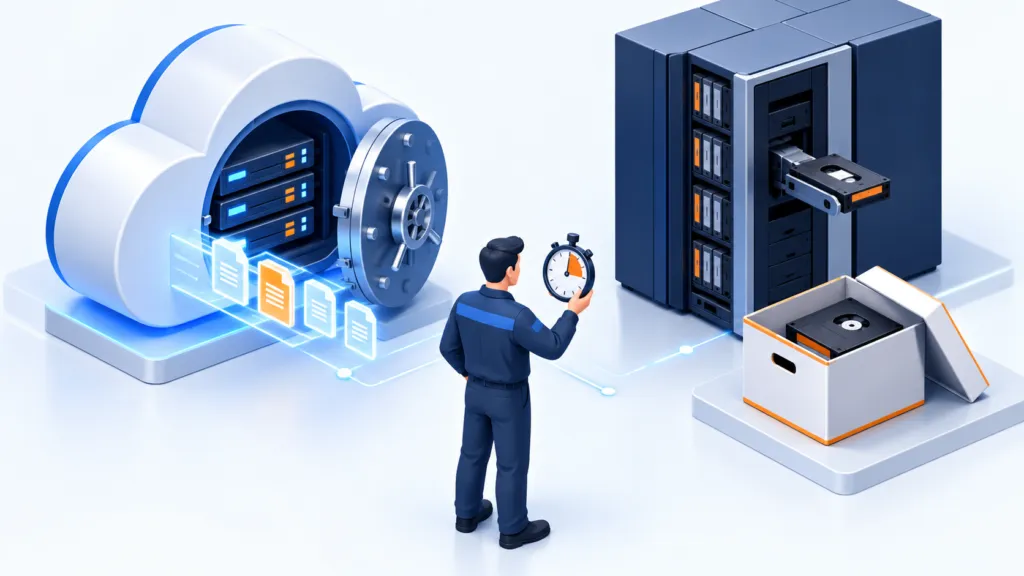
An Image backup saves a disk image that can be restored later. The source describes a large file, sometimes compressed, and mentions ISO as a common option — a statement clarified in a note later. Unlike direct cloning, here an intermediate result is stored, not necessarily a disk ready for immediate use.
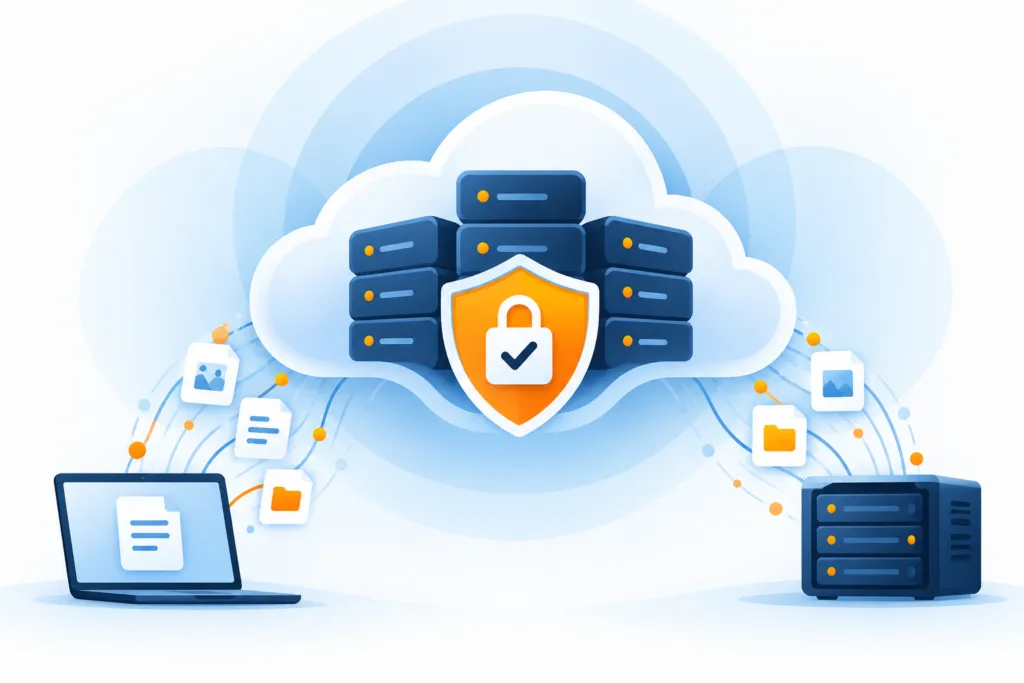
After creating the image, it can be compressed, encrypted, and stored in the cloud or on local storage for the long term. When needed, the image is opened and restored to a disk. Generally, restoration is done using software suitable for the format in which the backup was created.
What can be done with each method?
Key capabilities of cloning
Cloning software copies content from one disk to another in a single operation and preserves the necessary logical structure. This is its basic function in the scenario described in the article.
Key capabilities of Image backup
Image backup is part of a backup system, and therefore depending on the product, additional capabilities can be used:
- Compression and encryption of the backup.
- Storage in the cloud or in a local location until needed.
- Incremental, differential, or synthetic backup, for efficiently saving changes.
- Restoring the image directly to a virtual machine in the cloud, if the solution and infrastructure support it.
Replacing a disk? Cloning might be suitable
Cloning can be suitable for planned maintenance: the old disk begins to show errors, or you decided to switch to an SSD. In a suitable scenario, it is possible to move to the new disk with the system as it was at the time of cloning. The computer receives another disk, and you do not need to start over with all the settings.
The source claims that Windows cannot boot from a USB disk, so the cloned disk must be connected to a SATA port on the motherboard.
Preparing for a failure? Consider an Image backup
- The computer or the disk has failed. Even high-quality equipment can fail.
- Hardware was upgraded and you need to move to another computer. The image can be helpful even after the old disk is no longer available.
- The disk was damaged by ransomware or another type of malware, and data and system recovery are required. The source suggests deleting the disk and restoring the last backup image instead of paying the ransom.
Cloning: what is convenient, and what should be checked?
Advantage
In a suitable scenario, the duplicated disk can be used quickly, thus reducing downtime.
Limitations as presented in the source
- Partitions are created immediately on the target disk, so a direct copy requires space according to the disk's structure.
- The source claims that data cannot be compressed or encrypted during duplication.
- The source claims that differential or incremental duplication cannot be created.
- In the complete disk configuration described in the article, one active copy is maintained on each target disk.
- An additional disk is required to duplicate the current disk.
Image: flexibility that requires a restoration method
Advantages
- Centralized management of the system image. The source describes a single file containing the backup.
- It is possible to store multiple backups in the same destination if there is enough space.
- Compression may reduce storage volume.
- Disk images can be transferred over the network to one system or multiple systems, depending on the tool and the scenario.
Limitation
To use an Image backup, software or a recovery environment that supports it is required. An image file is not necessarily a system that can be run immediately, like a ready-to-use target disk. Therefore, it is advisable to prepare the recovery method in advance — not to look for it after the computer has already refused to boot.
Choose according to the task ahead of you
What to choose? It depends on the task. Cloning is a useful tool for maintenance and planned disk replacement. An Image backup helps prepare for unexpected failures, such as disk failure, computer malfunction, or malware damage. Both tools can be integrated into a plan, each in its appropriate role.
An Image backup requires familiarity and planning. You need to decide where to store the copies and also how to restore from them. The backup file is very important — but on the day of the failure, you also need to know what to do with it.