Practical answers for planning Proxmox backup, connecting the agent, choosing the target, and testing recovery. If network settings and permissions are in order, you can skip the guessing game of 'who blocked port 8007?'.
Check system requirements, Proxmox VE support, licensing limits, and features on your side before deployment. Details of the Community Edition and features mentioned here reflect documentation verified in October 2026 and may change.
Installation and connection
Where to install the agent?
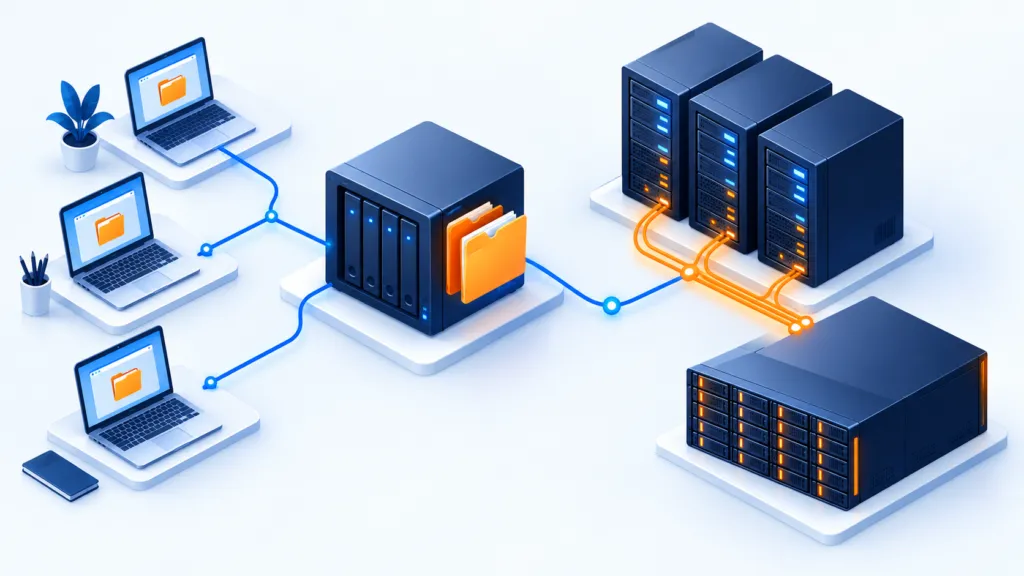
On a supported Windows computer. There is no need to install software or make special settings on the Proxmox host itself. The agent connects to the host via the Proxmox API, and you build the backup plan in the regular workflow of the backup program.
Need Proxmox Backup Server?
No. The documented path does not use Proxmox Backup Server and requires storing the backups directly on the storage target you chose.
Which port needs to be allowed?
On a Windows computer running the agent, incoming TCP traffic must be allowed on the port 8007 from the Proxmox host. If it is blocked, the first run might fail with code 1962. You can use the repair link that appears in the warning in the agent interface, or create a manual inbound Firewall rule according to the organization's policy. If there is a third-party Firewall, configure an appropriate rule there as well. Do not open the port to a wide network beyond the required sources.
Selecting machines and content
What can be included?
In the plan, select all machines, only active machines, or specific machines. Hypervisor-level backup is done without installing an agent inside each guest system, capturing the VM's disk image and its attached virtual disks as supported by the product.
Is it possible to install the agent on a VM on the same host?
The previous source indicated that the machine running the agent is excluded from backup. Check the behavior of your version and compatibility before placing the agent inside the target environment. In any case, keep a backup copy on storage separate from the host so that a host failure does not take the copy with it.
Planning, Encryption, and Storage
How do the runs behave?
The first run is full. Subsequent runs are incremental and retain the blocks that have changed since the previous backup. Starting from version 8.6.5 also documented Synthetic Full andSimple Schedule (Forever Forward Incremental), provided the storage account supports them. Synthetic Full creates a new full backup from a previous full backup and the incremental runs, without rereading all the source data. Simple Schedule manages a rolling incremental chain and automatic retention. Full and incremental backups can also be scheduled separately.
Can it be encrypted and compressed?
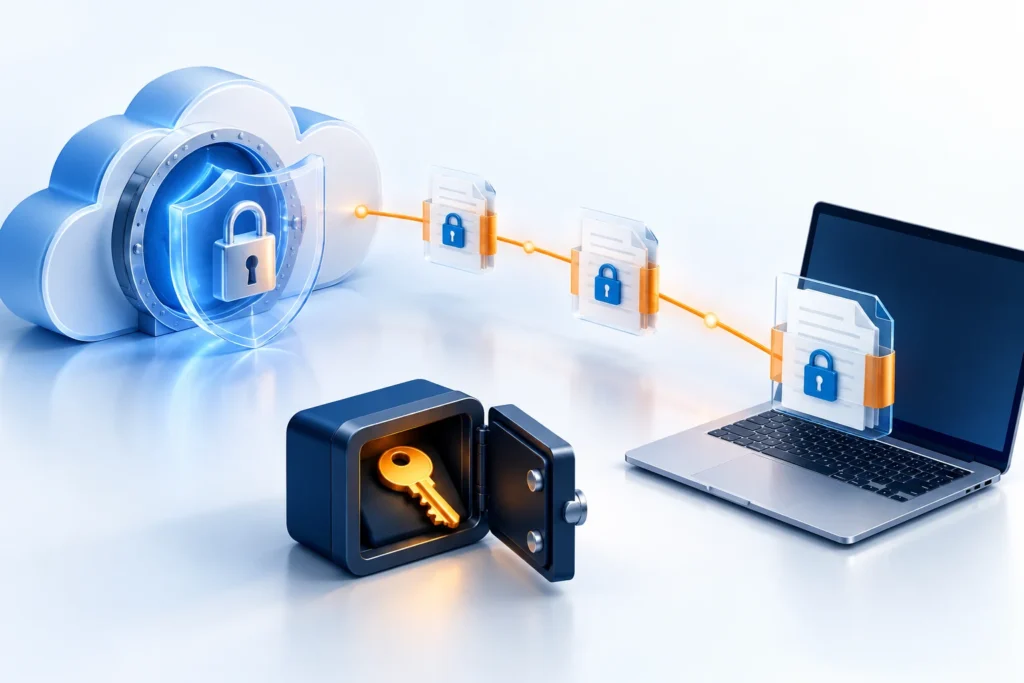
Yes, depending on the edition's capabilities. In encryption, a password is defined in the program; the data is encrypted before being sent to the destination. Keep the password in a secure, separate safe and ensure there is a way to recover it if needed.
What targets are available?
The documentation lists Amazon S3 and S3-compatible services, Wasabi, Backblaze B2, Microsoft Azure, Google Cloud Storage, and local storage such as disk, NAS, and network share. Check actual support and scheduling/retention features against the specific target type.
Restoration
What can be restored?
It is possible to restore a full VM to the selected Proxmox server. Depending on the screen and version, you can start the VM after the restoration, overwrite an existing VM, or create a VM with a new name. Carefully check the target name and overwrite option before confirming. Item-level restoration allows you to recover files and folders from a restore point without restoring an entire machine; an encrypted file may require the backup password.
How to check?
Select a restore point and restore a file or VM to a safe environment. Check boot, files, and applications, and then document the result. A “success” report does not replace a test restore.
Community Edition
In the product documentation tested in October 2026, a free standalone edition for Proxmox VE is described, with no time limit, for one host, up to two CPU sockets, and up to 5 TB of backup storage. Limitations and license eligibility may change; verify them on the download and license screen before use. The mentioned support is a community forum and knowledge base, without premium support; centralized management and premium support require a suitable managed edition.
Readiness check before regular use
- The agent connects to the host, and port 8007 is allowed only from the required network source.
- The machines, storage target, and correct encryption settings have been selected.
- Restore points appear, and warnings were checked and not hidden.
- Restore attempt completed, and data and applications were checked.
For permission matters: Proxmox User Permissions Guide.