Best practices for scheduling backups and retention policies in BackupONE
Full English translation of the provided source document, 2025 edition. All explanations, steps, numbers, and warnings have been preserved. English setting names are retained so that you can find them on screen without guessing. All original screenshots appear later, in the same order, including repeated screenshots.
Separate editorial note: The guide describes the features and conditions that originally appeared in the 2025 version. Version-dependent claims or vendor references are preserved as translations of the original and do not constitute confirmation of support in the current version. Do not change production configuration, locking, or retention period based solely on an example. Screenshots are preserved unchanged, including the product names appearing in them.
Copyright in the source document and its images is reserved to their owners, © 2025. This is a translation for the BackupONE knowledge center.

Table of Contents
Legend; Introduction; Basic configuration for cloud backup and sample settings; General considerations; Scheduling and retention guidelines for file backups, Image-Based, VMware, and virtual machines in NBF format; Using backups for compliance purposes; Key points and prerequisites for immutable backups; Reducing the size of incremental backups to prevent local storage overflow, including recommendations, explanation, and examples; Implementing the 3-2-1 strategy without hybrid backup, in the two versions appearing in the original; Backup considerations for Dropbox, OneDrive, and Google Drive.
Legend
Note: Useful notes and explanations.
Tip: User scenarios or helpful advice.
Warning: Disclaimers or information requiring attention.
Danger: Boxes intended for particularly important messages.
Introduction
The document deals with file backup scenarios, image-based backup, VMware backups, and Hyper-V backups on Windows endpoints. For guidelines on setting up Legacy backups as well as MS SQL, MS Exchange, Microsoft 365, Google Workspace, Linux, and Mac backups, refer to the relevant chapters in the help portal.
Basic configuration for cloud backup
The following configuration has proven itself as an effective starting point in most cloud backup scenarios. Before deciding if it suits your specific needs, it is important to consider the following points:
• The configuration is suitable for Files, Image-Based, Hyper-V, and VMware plans.
• It is intended for scenarios where data is stored for a period of up to a few months.
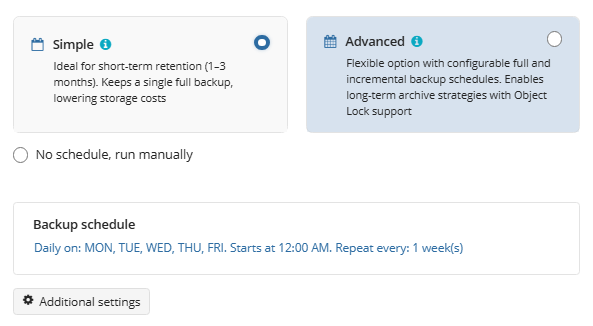
• A Simple schedule using the Forever Forward Incremental method reduces storage volume by keeping only one full copy. Other restore points contain incremental changes.
• According to the source, the recommended minimum retention period is 30 days. It is intended to provide enough time to recover data after a ransomware encryption attack, even when the responsible person is on a two-week vacation. This period also suits the minimum storage period of 30 days in the options listed in the source: Amazon S3 Standard-IA, Azure Cool tier, Wasabi-based vendor storage, and Wasabi.
Note from the source: The default minimum retention period defined in Wasabi is 90 days. The article on Wasabi's Minimum Retention Period explains how to reduce it to 30 days.
• Running a backup once a day sets a recovery point objective (RPO) of 24 hours. The backup frequency and retention can be adjusted according to the scheduling and retention guidelines chapter.
• When running a backup once a day, retention can be extended up to 100 days without any additional special considerations. The storage account will increase accordingly.
• Possible storage targets listed in the source: Amazon S3, except S3 Glacier Flexible Retrieval and S3 Glacier Deep Archive; Backblaze B2; Microsoft Azure, except Azure Archive; provider storage based on Wasabi or Amazon S3; and Wasabi.
Source warning: Local storage targets are not supported in this scenario in this document edition. For configuring recurring backups to a local file system target, refer to the chapters on general considerations and reducing backup volume to prevent storage from filling up.
Separate editorial note: The availability of features, minimum billing periods, and storage provider conditions may vary. A scheduled frequency of once a day achieves an actual RPO of 24 hours only if runs complete successfully within the required time.
Original reference: minimum retention period in Wasabi
Source warning: Object Lock, also called Immutability, is not compatible with the Simple / Forever Forward Incremental scheduling option in the described configuration, and therefore cannot be used in this configuration. For configuring Object Lock with GFS (Grandfather-Father-Son) retention, refer to the prerequisites chapter for immutable backups.
Configuration example: Basic cloud backup
1. Create a backup plan of type Files, Image-Based, VMware, or Hyper-V.
2. In the Where to Back Up step, choose a backup destination from the options listed above.
3. Complete the settings up to the Schedule Options step.
4. Set the Schedule Options according to the original screenshot.
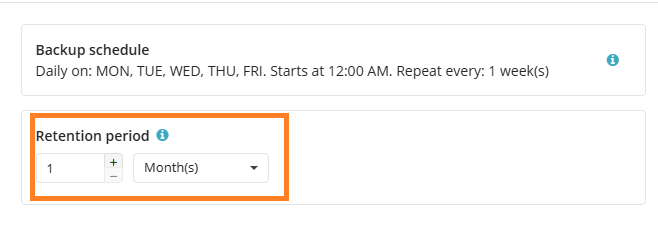
5. Set the Retention Policy according to the next screenshot.
6. Continue configuring the plan and save it.
General considerations
Before selecting the type of backup, schedule, retention policy parameters, and appropriate storage type, the following question needs to be answered: What is the main purpose of the backup in this case?
A common answer is the ability to restore files and folders after accidental deletion or a ransomware attack. In such a case, it is advisable to consider a cloud storage destination, preferably complemented by local backups.
Backups stored on the business site are generally more exposed to loss or corruption due to malware infection. A cloud backup provides an offsite, remote solution that allows restoring the data from another location.
Note: It is possible to restore individual files and folders also from Image backups and virtual machine backups. This process is called Granular Restore, or item-level restore.
Another goal is the ability to restore the system state from an Image-Based backup or from a virtual machine backup as it was at a specific point in time. In such a case, there is an advantage to having a local copy, due to faster access to it. It is still recommended to complement the local backup with an offsite cloud backup to address risks such as hardware failure or disaster.
The purpose may be to retain snapshots of the information according to legal requirements. It may also be a combination of purposes. Even then, it is recommended to identify the main scenario and the capabilities that are only desirable.
In addition to identifying the main backup and restore scenario, ask:
• Are there regulatory or contractual requirements regarding the retention period?
• What is the RPO (Recovery Point Objective)? In other words, how frequently should the backup software capture changes?
• What is the RTO (Recovery Time Objective)? In other words, within what time should recovery be performed in the main usage scenario?
If the backups need to be immutable, additional special considerations must be taken into account, as detailed in the chapter on prerequisites for using immutable backups.
Scheduling and retention guidelines for NBF format
The guidelines deal with file backups, Image-Based, VMware, and virtual machines in the new NBF (New Backup Format).
Warning: To achieve optimal recovery performance, the source strongly recommends keeping no more than 100 restore points in a single backup chain.
Simple Scheduling: How do we stay within 100 restore points?
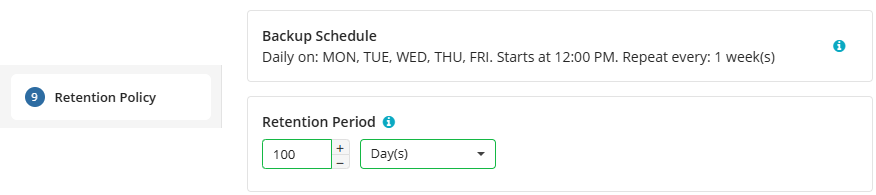
A. In a typical Simple configuration with daily backups, described in the source as one run per working day, the basic retention period should be set to no more than 100 days, as shown in the screenshot.
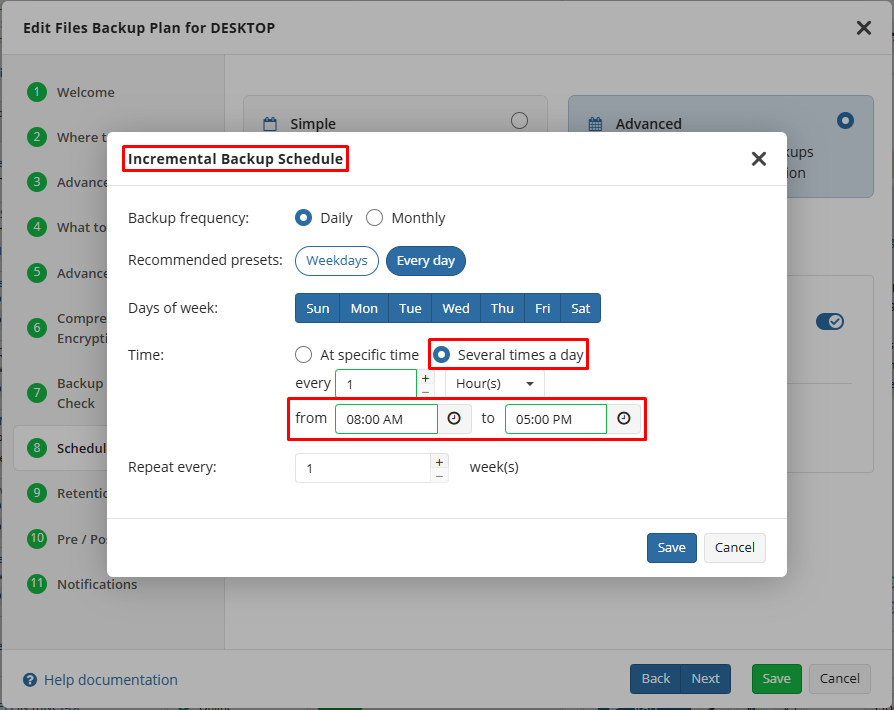
B. When a program on a Simple schedule runs more than once a day, the base retention period should be changed so that the number of recovery points in a single chain stays below 100. For example, if the program runs 10 times a day, every hour from 08:00 to 17:00, the base retention period should be no more than 10 days.
C. On the other hand, when the program runs 5 times a week, once a day from Monday to Friday, the base retention period can be extended to 140 days.
Advanced Scheduling: How to stay up to 100 recovery points?
A. In a typical Advanced configuration with daily backups, described originally as running once every workday:
• Any number can be set as the base retention period.
• A gap of less than 100 days between full backups must be set. For example, they can be scheduled once every three months.
B. When the program runs more than once a day, change the Full Backup Schedule so that the number of recovery points in a single chain stays below 100.
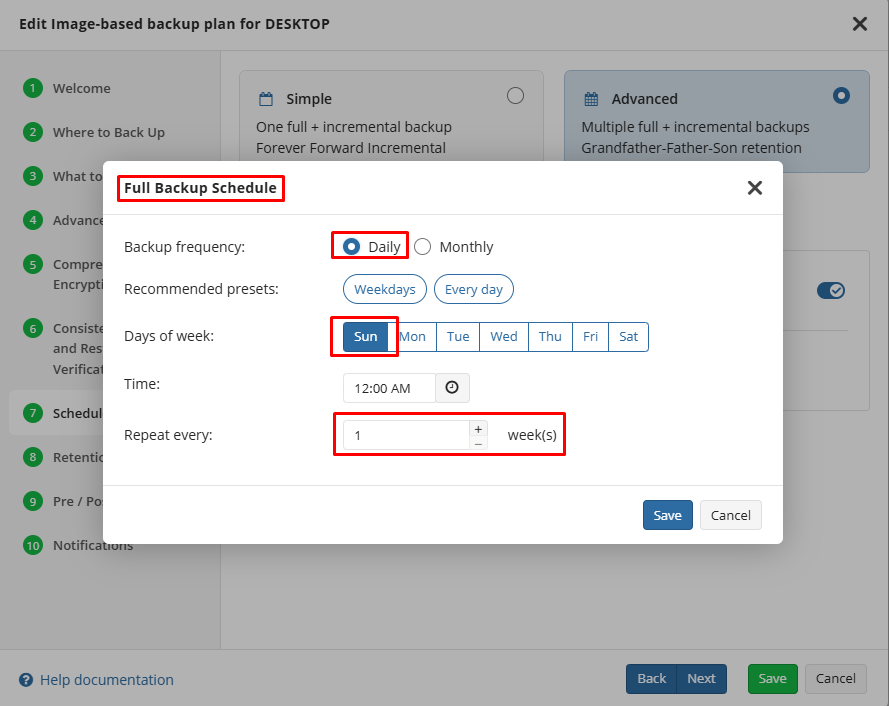
For example, if the Incremental Backup Schedule runs the program 10 times a day, every hour from 08:00 to 17:00, a full backup should be scheduled at least once a week.
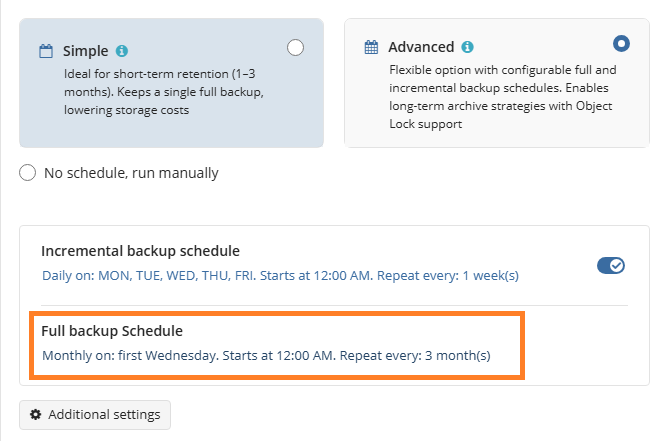
The following original screenshot complements the example of frequent scheduling in the original. There is no additional explanatory text on this page in the original document.
C. Alternatively, when the program runs 5 times a week, once a day from Monday to Friday, it is possible to schedule a full backup once every four months. Such scheduling creates, according to the example in the original, 85 incremental restore points between two consecutive full backups.
Using backups for compliance purposes
Compliance with regulations and law sometimes requires keeping certain information for a defined period, sometimes several years. The original cites, as an example, keeping information covered by HIPAA for 5 years or more.
The GFS (Grandfather-Father-Son) retention option helps preserve information with a number of restore points that could be unlimited.
Warning: extending retention using GFS applies only to full restore points. Therefore, it significantly increases the total storage volume.
Separate editorial note: The HIPAA example is provided as a faithful translation of the original and is not a determination of the legally required retention period for any specific organization. The requirement applicable to your type of information and documents must be verified separately.
Example definition: GFS retention
1. Create a backup plan and complete the settings up to the Schedule Options step.
2. In the Schedule Options step, select Advanced.
3. Ensure that the Incremental Backup Schedule is set according to your RPO requirements.
Warning: Only full recovery points can be retained longer than incremental recovery points using GFS.
4. By default, a full recovery point will be created every month. You can adjust the appropriate schedule in the Full Backup Schedule.
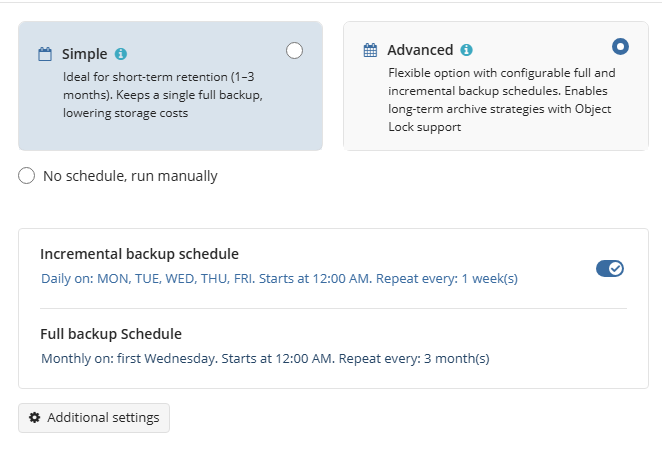
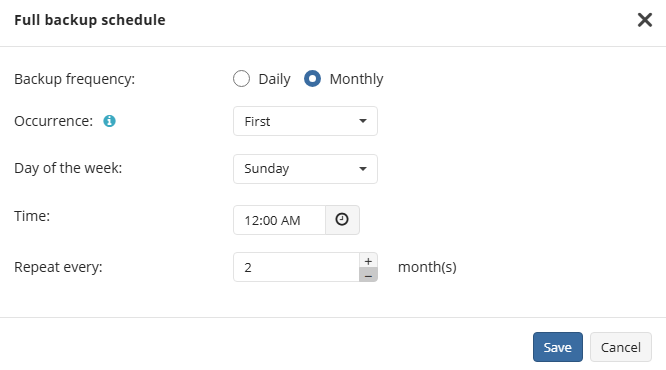
When changing the Incremental Backup Schedule or the Full Backup Schedule, ensure that the result complies with the guidelines in the scheduling and retention section for the NBF format. The source here specifies at most 100 incremental backups between two consecutive full backups.
In this example, full backups will be performed on the first Sunday of every other month, according to the Repeat every setting.
5. Move to the Retention Policy step.
6. Set a basic retention period that will be used for both incremental restore points and full restore points.
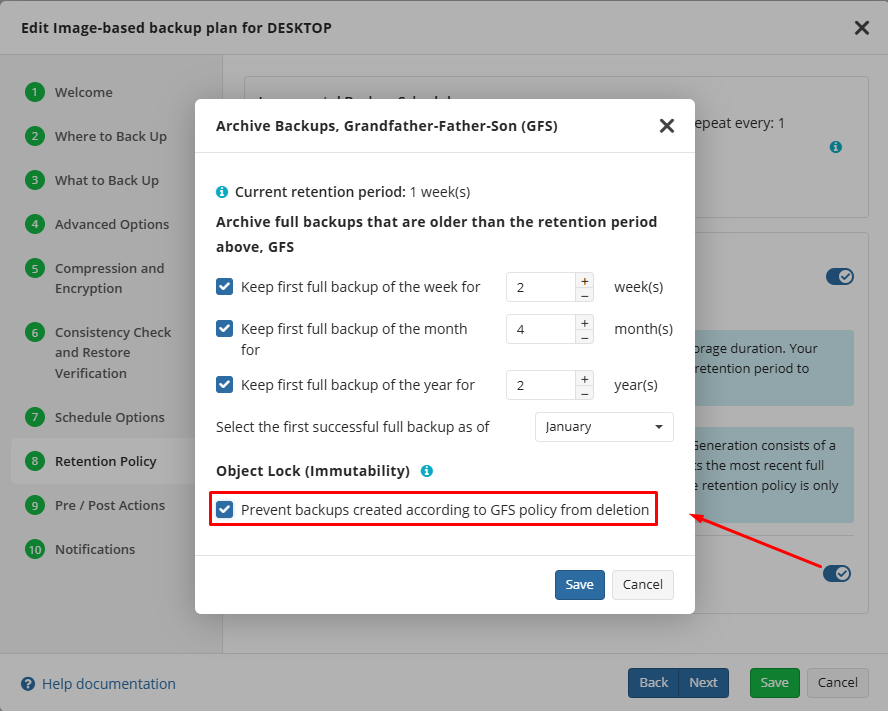
7. Check Enable GFS.
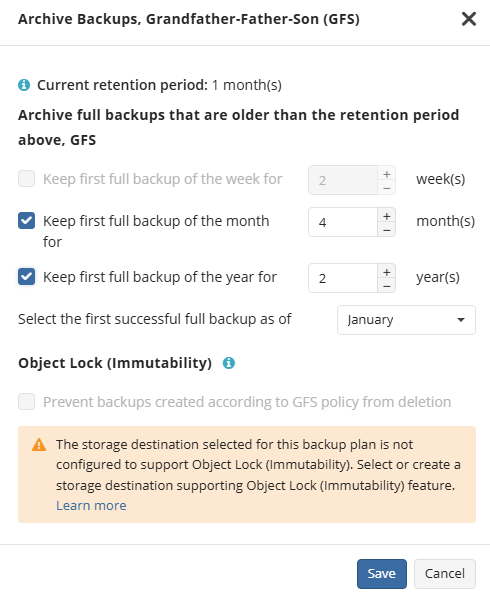
8. To extend the retention of full backups performed once every two months, enable Keep first full backup of the month for and enter the total number of months for which they should be kept. This period must be longer than the basic retention period set in step 6.
9. To extend the retention of annual full backups, enable Keep first full backup of the year for and set the required number of years. In this example, the first full restore point created in January is defined as the annual point.
10. Continue with configuring the schedule and save it.
Since in this example full backups are not performed weekly, the option Keep first full backup of the week for is not available to enable.
Key points and prerequisites for immutable backups
1. According to the original edition, one of the following cloud storage options must be used: Amazon S3; Backblaze B2; Provider storage based on Amazon S3 with unified billing; Provider storage based on Wasabi with unified billing; or Wasabi.
Warning from the source: Local file system targets and other cloud options are not compatible with Object Lock in the described configuration.
2. According to the original text, Object Lock must be enabled when creating a Bucket, and it cannot be enabled on an existing Bucket. Additional details are provided in the original link regarding adding Immutability.
3. Immutability or Object Lock can be used with file backups, Image, and virtual machines in NBF format.
4. Use Advanced scheduling along with regular full backups.
5. At the Retention Policy stage in the backup plan wizard, use GFS.
6. Enable Prevent backups created according to GFS policy from deletion, to prevent deletion of backups created according to the GFS policy.
Warning from the source: Object Lock applies here exclusively to full recovery points belonging to one of the GFS levels: weekly, monthly, or yearly. The period is determined according to the appropriate parameter Keep first full backup of the ….
Separate editorial note: The conditions in this section are copied in meaning from the 2025 edition. The ability to enable Object Lock on an existing Bucket and the extent of support vary between providers and versions. This section should not be regarded as an instruction to disable an existing lock or delete protected copies.
Original reference: Immutable backups
Warning from the source: The Object Lock / Immutability period is set at the time of creating a full recovery point and cannot be changed afterward, according to the behavior described in the document.
Reducing the size of repeated backups to prevent local storage from filling up
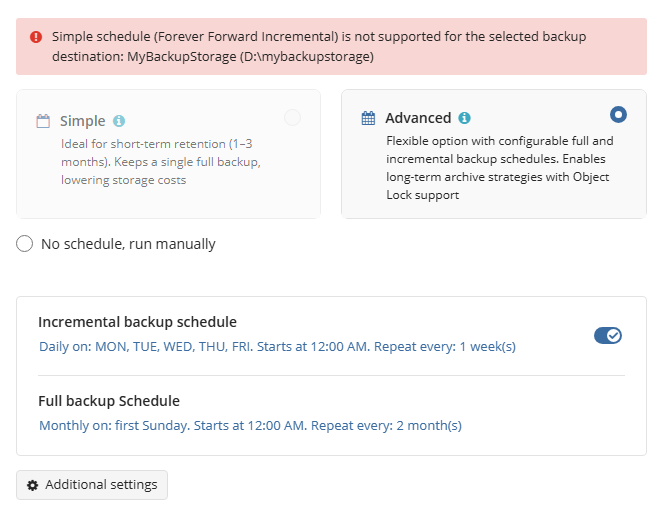
According to the original edition, backup plans to Local File System destinations cannot use Simple scheduling. Advanced scheduling may, depending on its settings, require storing more than two full backups simultaneously. This situation may be problematic when capacity is limited, especially on connected USB drives, and to a lesser extent also on NAS devices.
Therefore, sometimes it is advisable to optimize the strategy so that the number of full backups kept simultaneously is limited to a minimum of two.
Configuration Recommendations
1. Choose a retention period of 6, 13, 20, 27, or 34 days, or a longer period in increments of 7 days.
2. Create a plan and complete the settings up to the Schedule Options step.
3. At this stage, select Advanced.
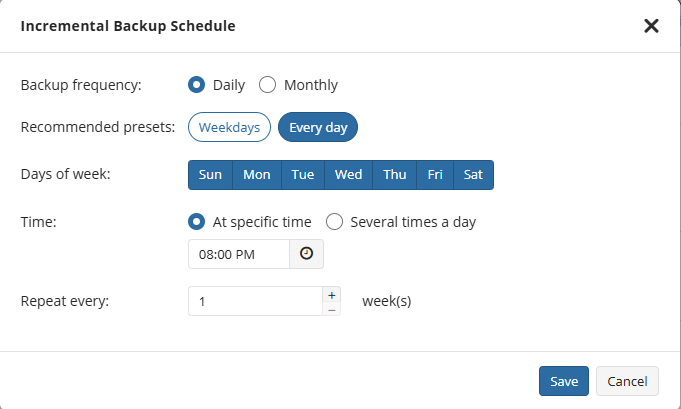
4. Make sure the Incremental Backup Schedule is configured according to the required RPO.
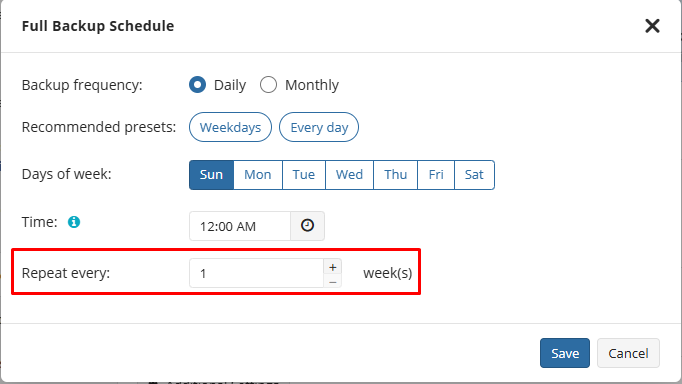
5. Edit the Full Backup Schedule and set it to Weekly.
6. Choose which day of the week the full backup will be performed.
7. In the parameter Repeat every: X week(s), set 1 for a retention period of 6 days, 2 for a period of 13 days, and so on.
8. Save the changes and go to Retention Policy.
9. Set in Keep backup for the number of days you have chosen. Make sure GFS scheduling is turned off in this example.
As a result, the previous generation of restore points will be deleted immediately after the completion of the incremental backup preceding the new full backup. This way, the maximum storage volume is limited to two full data sets, in addition to the desired number of incremental backups.
The explanation behind the definition
1. Since Simple scheduling is still not available for Local File System targets in the described release, Advanced must be used.
2. Full and incremental backups create base generations, also called chains: sequences of restore points belonging to a specific plan. Each sequence starts with a full backup and continues with incremental backups until the next generation begins.
3. In full and incremental backups, retention rules apply to an entire generation. For example, if a 30-day retention window includes any full or incremental restore point from a particular generation, the entire generation is retained. The generation will be deleted in its entirety only when the entire time window moves on to the next generation.
4. As with other types of plans, cleanup is allowed only after a backup run has successfully completed.
5. Therefore, recurring full and incremental backups require that several full backups exist in storage simultaneously. Their number is determined according to the retention window and schedule.
6. Since local storage is sometimes limited in free space, it is recommended to optimize the number of full backups to the minimum required.
7. For this purpose, the retention period and the full backup schedule should be adjusted so that the previous generation of recovery points is deleted immediately after the previous incremental backup for a new full backup is completed.
Separate editorial note: This is an explanation of the cleanup behavior described in the source, and not an instruction for manual deletion. The example is not intended to bypass Object Lock or shorten mandatory retention.
Configuration examples: Retention for 6 days
Full backups are scheduled to run weekly, as shown in the original screenshot.
incremental backups for the 6-day retention example: full settings are shown in the following original screenshot.
Retention period of 6 days: the original setting is shown in the next screenshot.
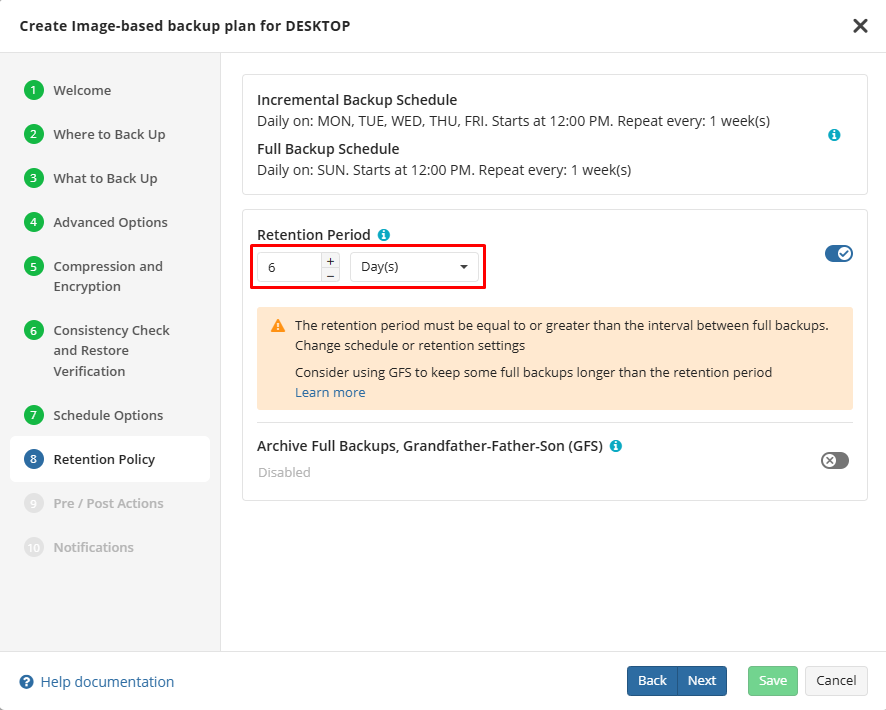
Configuration examples: Retention for 13 days
Full backups are scheduled to run every two weeks, as shown in the original screenshot.
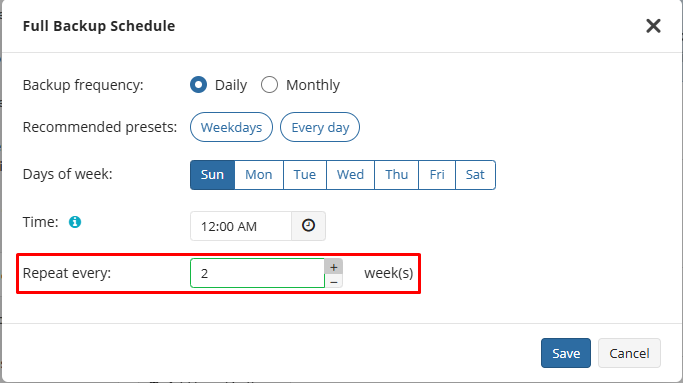
incremental backups for the 13-day retention example: the original settings are shown in the following screenshot.
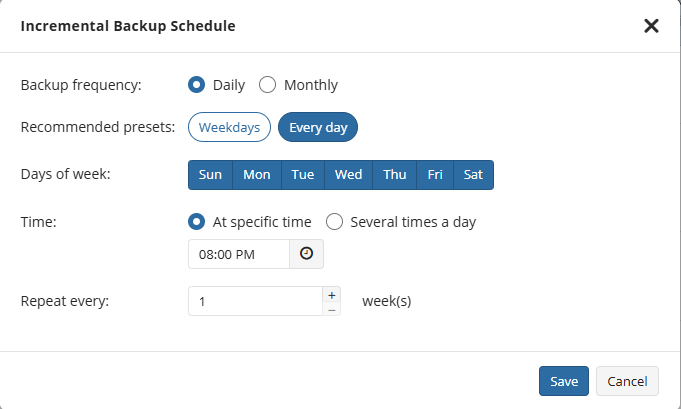
Retention period of 13 days: the original setting is shown in the next screenshot. The screenshot is also saved here, even though it repeats in the document.
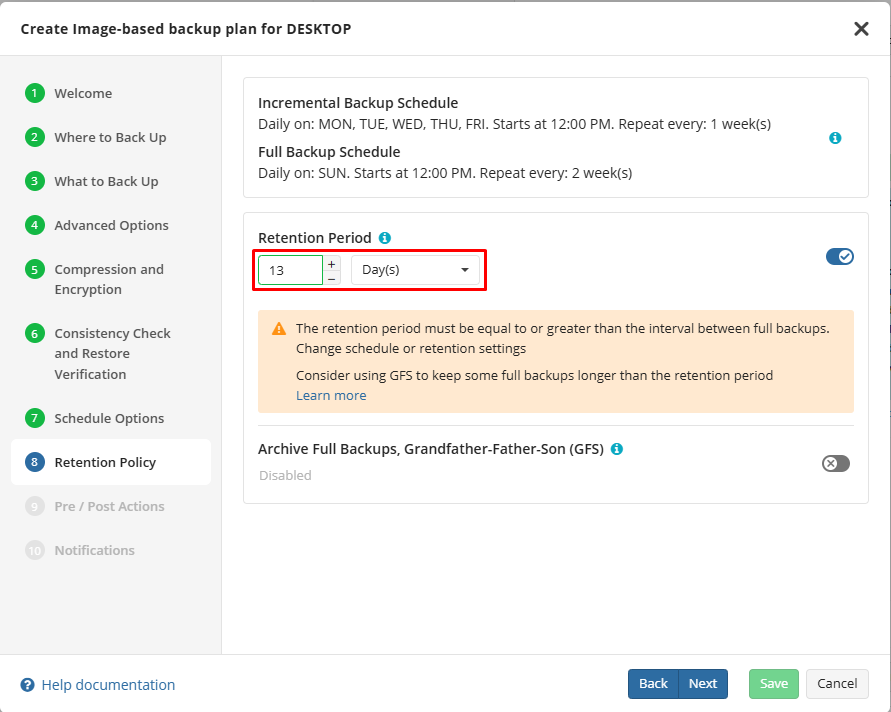
The following original screenshot continues the 13-day retention pattern. On this page, there is no additional explanatory text in the original.
Implementing the 3-2-1 strategy without hybrid backup: the first original version
A hybrid backup plan allows sending the same backup to both a local destination at the business site and a cloud destination. This makes it easier to implement a 3-2-1 strategy.
According to the original edition, the Hybrid option is not available for NBF plans. Therefore, to implement 3-2-1, at least two separate plans need to be created: one that sends data to a local destination and another to a cloud destination.
With a basic approach, two independent plans can be scheduled while leaving enough time for the first one to finish. If the cloud storage supports Synthetic Full Backups, the original recommends running the cloud backup first. After the first upload, subsequent backups can be run in parallel.
On the other hand, with local storage or cloud storage that does not support Synthetic Full, regular full uploads are required, which take significantly longer than incremental backups.
The source lists support for Synthetic Full in: Amazon S3, except S3 Glacier Flexible Retrieval and S3 Glacier Deep Archive; Backblaze B2; Amazon S3-based provider storage; and Wasabi-based provider storage.
The list of providers in the source continues: Microsoft Azure, except Azure Archive; MinIO; IDrive e2; S3-compatible storage, according to the provider; and Wasabi.
Alternatively, you can use Backup Chain to run the second plan immediately after the first one finishes.
Warning from the source: Backup Chain does not support Simple / Forever Forward Incremental scheduling in the described edition. Therefore, the primary plan in the chain should use Advanced scheduling.
Example configuration: Creating a backup chain
1. Create the backup plan that will serve as the secondary plan in the chain.
2. In the Where to Back Up step, select a cloud destination. Alternatively, you can select a secondary local destination.
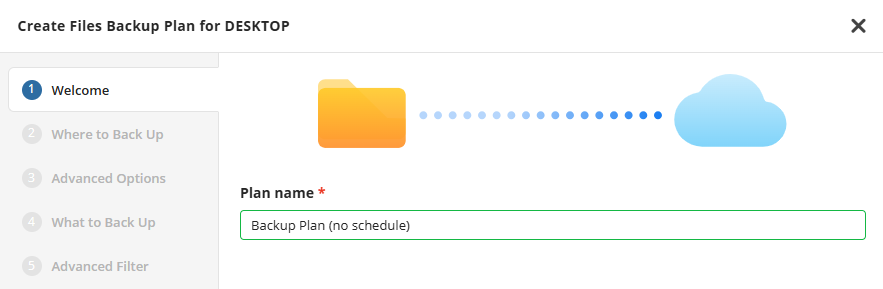
3. Continue setting up the plan until the Schedule Options step.
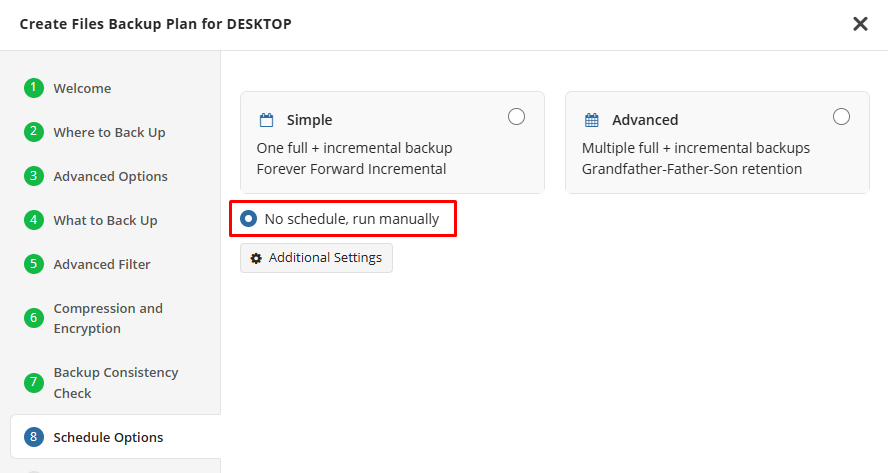
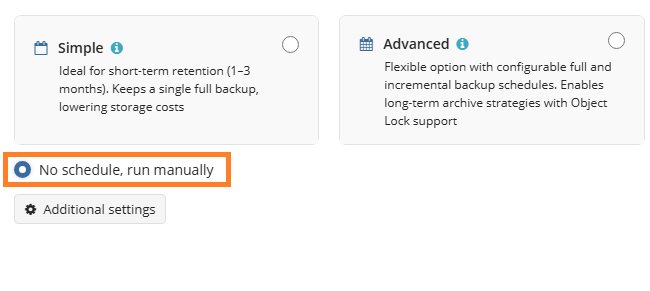
4. Select No schedule, run manually, meaning no scheduling and manual operation.
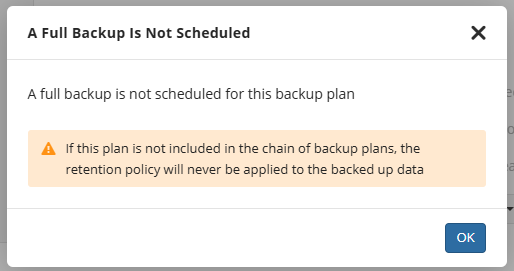
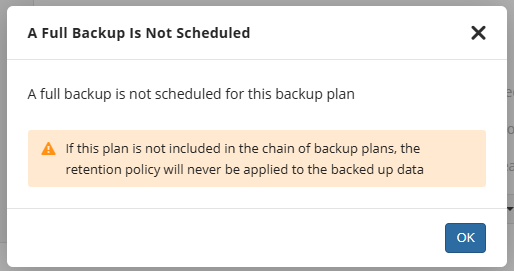
5. Continue with the setup until saving the plan. When the warning shown in the screenshot on the next page appears, click OK.
6. Create another plan, which will serve as the main plan in the chain.
7. At the 'Where to Back Up' step, choose local storage.
8. Continue with the setup until the 'Schedule Options' step.
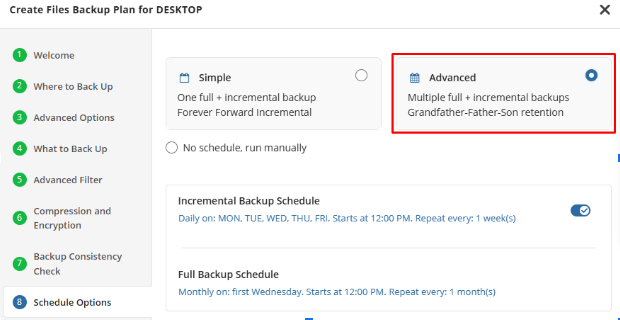
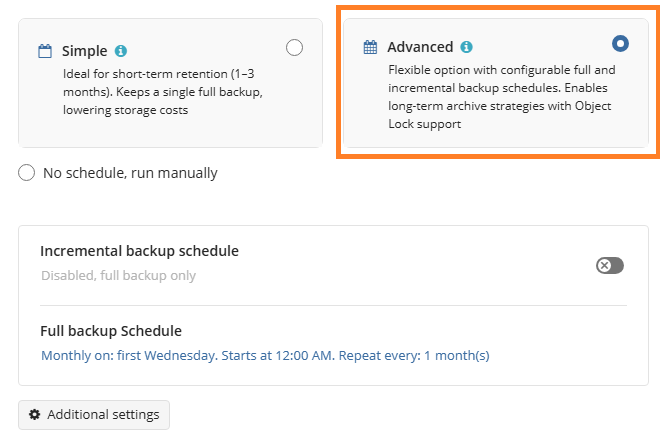
9. Select Advanced. You can change the schedule while adhering to the recommendations in the chapter 'Scheduling and Retention Guidelines for File, Image, and NBF Virtual Machine Backups.'

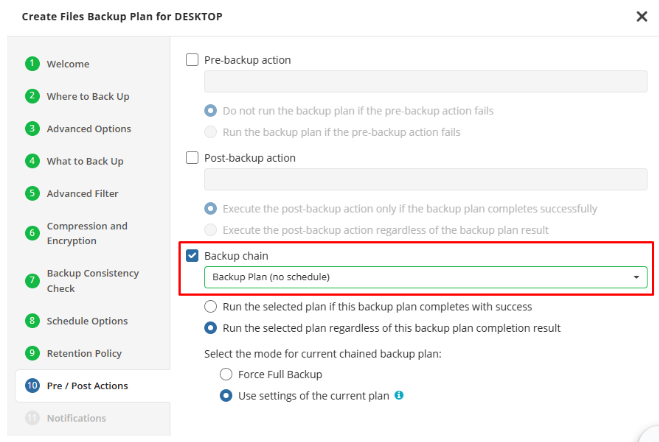
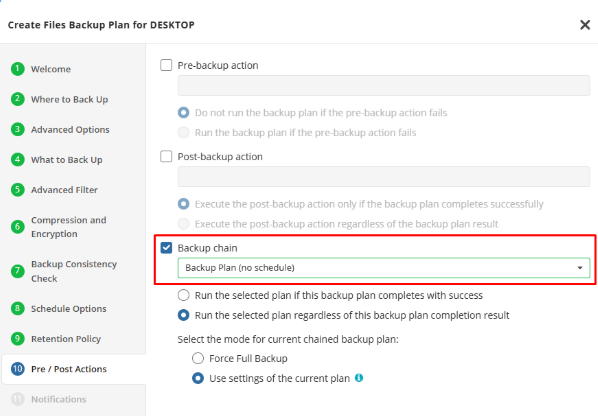
10. Continue to the 'Pre / Post Actions' step. Enable Backup chain and select from the drop-down menu the backup plan you created earlier.
11. Continue with the plan setup and save it.
Implementing the 3-2-1 strategy without hybrid backup: the second original version
Editorial note: The source document includes an additional chapter with the same title, containing some repeated explanations and screenshots. This chapter is also presented here in full, to avoid omitting content.
A hybrid backup plan allows sending the same backup both to a local destination at the business site and to a cloud destination, and facilitates the implementation of the 3-2-1 strategy.
According to the original wording, Hybrid is not available for NBF plans. Therefore, at least two separate plans need to be created: one plan for a local target and another plan for a cloud target. After that, Backup Chain can be used to run one plan immediately after another.
Warning from the source: Backup Chain does not support Simple / Forever Forward Incremental scheduling in the version described, so the Advanced option must be used in the main plan in the chain.
As usual, a chain consisting of a local plan and a cloud plan is created. In this version of the chapter, the source recommends running the backup to the local target first.
Separate editorial note: The recommendation here and the option to run the cloud backup first in the previous chapter are retained verbatim in meaning. The previous chapter explicitly refers to support for a Synthetic Full. The order of runs should be adapted to the actual configuration.
Example of the recurring setup in the source
1. Create a backup plan to serve as the secondary plan in the chain.
2. In the 'Where to Back Up' step, select a cloud target. A secondary local target can also be chosen as an additional option.
3. Continue with the settings up to Schedule Options.
4. Choose No schedule, run manually.
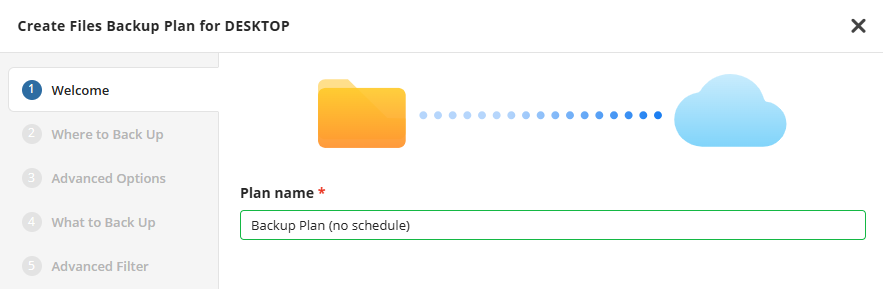
5. Continue with the settings until save. When the warning shown in the screenshot appears, click OK.
6. Create a backup plan to be used as the main plan in the chain.
7. At the Where to Back Up step, choose a local storage destination, as shown in the next screenshot.
8. Continue with the settings until Schedule Options.
9. Choose Advanced. You can change the timing while adhering to the recommendations referred to in the source, in the chapter Schedule and Retention Best Practices.
Original reference: Scheduling and retention guidelines

10. Continue to Pre / Post Actions. Enable Backup chain and select from the drop-down menu the backup plan created earlier.
11. Continue with the plan setup and save it.
Backup considerations for Dropbox, OneDrive, and Google Drive
Cloud synchronization services such as Microsoft OneDrive, Dropbox, and Google Drive use file virtualization techniques, which may prevent regular backup accesses from functioning. This chapter details the special considerations for each service.
To save local space, files stored in OneDrive, Dropbox, or Google Drive may not be present on the local disk at all times.
Warning: Image-Based backup is generally not suitable for reliable backup of files in cloud sync folders such as Dropbox, OneDrive, or Google Drive.
Dropbox
Local access to files is via the Dropbox folder in the user profile. The folder can be included in a file backup program or in an Image-Based backup program.
However, only files marked with a green checkmark, meaning Available Offline, will be backed up when included in the backup scope. Online-Only files, marked with a blue cloud, will not be backed up with these approaches.
Microsoft OneDrive
Local access to files is via the OneDrive folder in the user profile. A large portion of the data may be set to On-Demand, with a blue cloud icon.
Although it is possible to include the OneDrive folder in both file backup and Image-Based backup, Image-Based backup is not able to process On-Demand files according to the original behavior.
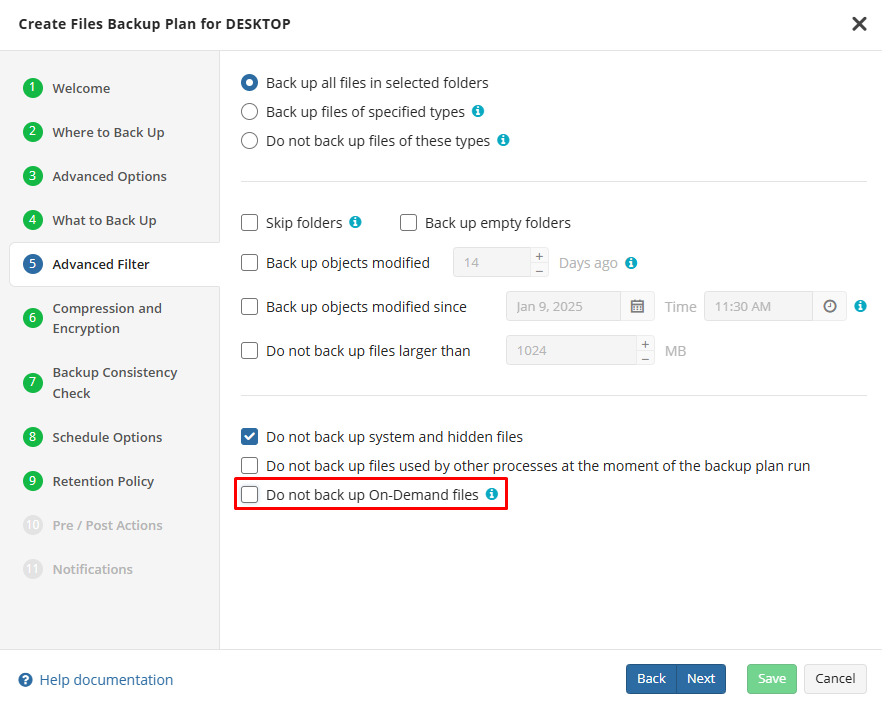
To make On-Demand files consistently available for backup, the Do not backup On-Demand files checkbox must be unchecked in the Advanced Filter step of the file backup wizard, as shown in the original screenshots.
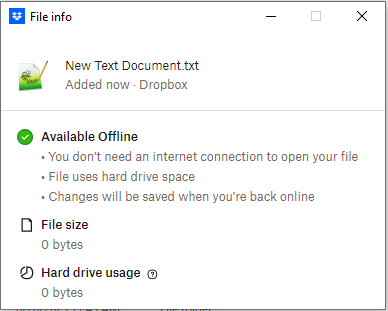
The following screenshot continues the explanation of the setting in Advanced Filter. On this page, there is no additional explanatory text in the original document.
Google Drive
Local access to files is done through the GDrive Personal folder in the user profile and via dedicated virtual drives. Some of the files on these drives may be available only online because they are represented by placeholder references.
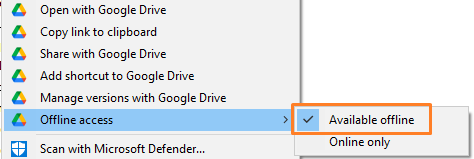
Only files set as Available offline in Google Drive's Offline access menu will be backed up through the described local access. Files set as Online only will not be backed up this way.
According to the source, online Google Drive files should be backed up using Microsoft 365 / Google Workspace backup.
Separate editorial note: It should be verified that the required files are indeed available to the backup mechanism and a test restore should be performed. A file icon in a folder is not in itself proof that the file content is included in the backup copy.
Original reference: Microsoft 365 / Google Workspace backup