
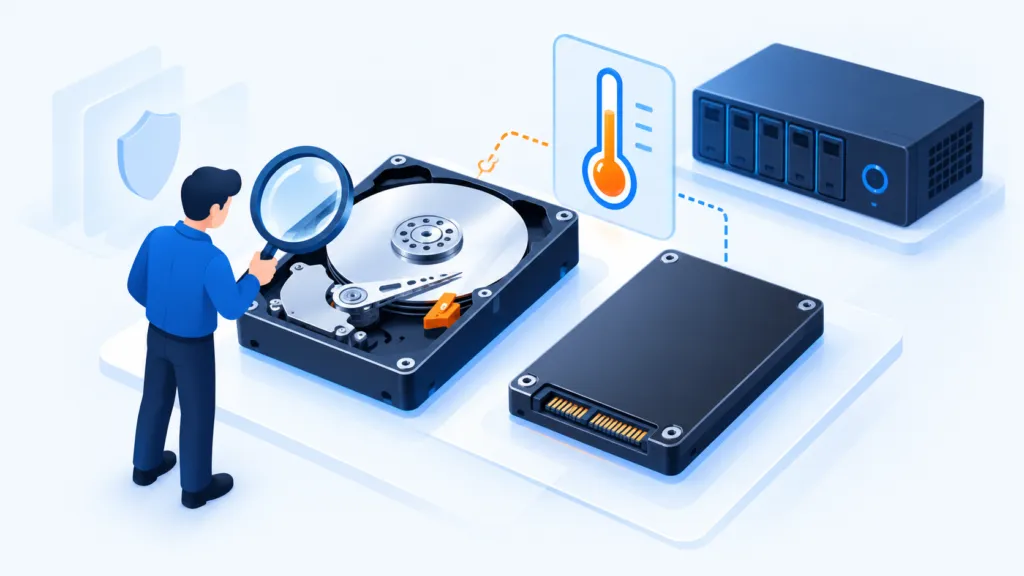
A hard drive or SSD may keep working even after signs of trouble appear. Good maintenance cannot guarantee that a drive will not fail; it helps identify changes in condition and replace the drive before the business depends on emergency recovery.
Drive health is an indicator
- Monitor errors and temperature
- Maintain according to drive type
- Backup and a replacement plan
Check health, errors and free space
Monitor health indicators provided by the drive and manufacturer tools alongside input/output errors in system logs. Sudden slowdowns, repeated disconnections or unreadable files warrant investigation. Healthy readings do not rule out failure and are not a substitute for backup.
Match maintenance to the drive type
Data organization can affect access time on a mechanical drive. SSDs work differently. In Windows, use the built-in drive optimization tool, which identifies the media type and performs suitable maintenance, rather than manually running operations intended for mechanical drives.
Maintain suitable operating conditions
Check ventilation and temperatures against manufacturer guidance, stable power and connections. Leave free-space headroom for updates, temporary files and routine work. On a server, also check the storage controller, alerts and array condition.
Plan replacement, not just repair
- Record the model, age, condition and warranty of important drives.
- Configure alerts and assign responsibility for handling them.
- Test recovery to an alternative computer or drive.
- Set a maintenance window and prepare for downtime.
For guidance on the built-in tool: Drive optimization in Windows.