
A computer that cannot access a website, a backup service that is stuck, or workstations that need cleaning — a large part of maintenance starts with familiar actions. Instead of remembering the sequence of clicks each time, you can work with ready-made, clear, and documented instructions.
What is a script library?
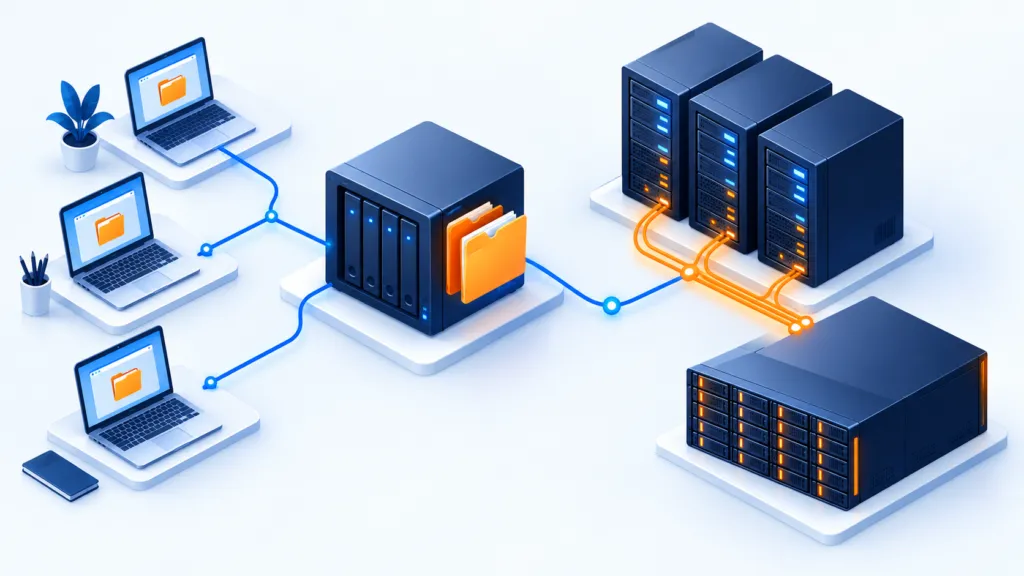
A script is a sequence of commands that performs a defined task. The library includes ready scripts for Windows and macOS and the option to add customized actions. You choose the computer and the action and manage the execution from one screen, according to account permissions.
From a recurring issue to an organized process
An organized task that can be repeated, without starting from scratch each time.
The same working method on different computers, with parameter adjustments for the environment.
Less dealing with routine clicks and more room for diagnosis and planning.
How does it help in a real workday?
The site does not open — but the internet works
One possible check is the local DNS cache. When the diagnosis is appropriate, a dedicated clearing operation can be used instead of guiding each employee separately through the command line. This is a targeted check, not an automatic solution to every browsing problem.
The backup service stopped responding
After examining the cause, the IT person can start or restart the relevant backup services. At the end, check that the service has resumed operation and that the backup result is correct — merely running the script is not proof that the backup succeeded.
Maintenance that does not wait for 'when there is time'
Defined actions such as clearing temporary files, collecting information, or checking a system component can be integrated into the maintenance routine. Scheduling or linking to an alert requires configuration in the system; having a script in a directory does not mean it is already running in the background.
Library map: what is available for operation?
The graphs show the number of available actions, not performance data or a promise of time savings.
Division by operating system
Actions by category
Scripts available in the account
36 actions for maintenance, diagnosis, and operation. Search by task or filter by operating system.
| Script name | What does it do? | Emphasis on execution |
|---|---|---|
Add-WindowsFirewallRulesWindows · PowerShell 3.0+ | Creating Windows firewall rules for the backup agent. | Changing network rules |
Check-DiskWindows · PowerShell 3.0+ | Checking and repairing storage, similar to chkdsk. | Disk repair — schedule maintenance |
Check-WakeOnLanWindows · PowerShell 3.0+ | Checking Wake-on-LAN settings on physical wired network interfaces. | Diagnosis |
Check-WinGetWindows · PowerShell 5.0+ | Checking if the WinGet package manager is installed on the computer. | Diagnosis |
Clear-DNSCacheWindows · PowerShell 3.0+ | Clearing the local DNS cache as part of handling address resolution issues. | Clearing cache |
Clear-FirefoxCacheWindows · PowerShell — all versions | Clearing the Firefox cache to troubleshoot loading or display issues. | Clearing cache |
Clear-GoogleCacheWindows · PowerShell — all versions | Clearing the cache in Google Chrome. | Clearing cache |
Clear-IECacheWindows · PowerShell — all versions | Clearing the Internet Explorer cache in environments where it is relevant. | Legacy browser component |
Disable-WakeOnLanWindows · PowerShell 3.0+ | Disabling Wake-on-LAN on physical wired network interfaces. | Restarting a network interface and disconnecting connections |
Enable-WakeOnLanWindows · PowerShell 3.0+ | Enabling Wake-on-LAN on physical wired network interfaces. | Restarting a network interface and disconnecting connections |
Fix-WUDataBaseErrorWindows · PowerShell 3.0+ | Handling a corrupted Windows Update agent database. | Repairing a system component |
Get-PSVersionInfoWindows · PowerShell — all versions | Displaying PowerShell version information. | Collecting information |
Get-SystemInfoWindows · PowerShell — all versions | Collecting system and operating system properties. | Collecting information |
Install-WinGetWindows · PowerShell 5.0+ | Installing WinGet on Windows Server 2019/2022 systems supported with Desktop Experience. | Restarting the RMM agent service |
MacOS_CleaningAndOptimizationmacOS · Bash | Performing cleanup and optimization actions. | Check the scope of the cleanup |
MacOS_ClearsCachesmacOS · Bash | Clearing caches and system logs. | Cleaning files and logs |
MacOS_ForcesExecutionServiceScriptsmacOS · Bash | Manually running daily, weekly, and monthly maintenance scripts. | Maintenance |
MacOS_ForcesRestartmacOS · Bash | Forced operating system restart. | Reboot — coordinate with the user |
MacOs_Install_HomebrewmacOS · Plugins | Installing the Homebrew package manager. | Installing component |
MacOS_InstallsAllAvailableUpdatesmacOS · Bash | Installing all available updates. | System update — coordinate maintenance |
MacOS_InstallsAllRecommendedUpdatesmacOS · Bash | Installing all recommended updates. | System update — coordinate maintenance |
MacOS_NoSleep1hmacOS · Bash | Preventing sleep for one hour when the Mac is connected to power. | Changing sleep behavior times |
MacOS_NoSleep2hmacOS · Bash | Preventing sleep for two hours when the Mac is connected to power. | Changing sleep behavior times |
MacOS_NoSleep4hmacOS · Bash | Preventing sleep for four hours when the Mac is connected to power. | Changing sleep behavior times |
MacOS_SpotlightOptimizationmacOS · Bash | Deleting and rebuilding the Spotlight index. | Rebuilding the index |
MacOs_Uninstall_HomebrewmacOS · Plugins | Uninstalling the Homebrew package manager. | Removing a component |
Optimize-DiskWindows · PowerShell 3.0+ | Defragmenting storage media. Check suitability for the drive type. | Storage maintenance |
Remove-TempFilesWindows · PowerShell — all versions | Deleting temporary files from Windows and user folders. | Deleting temporary files |
Remove-WindowsFirewallRulesWindows · PowerShell 3.0+ | Removing firewall rules of the backup agent. | Changing network rules |
Restart-ComputerWindows · PowerShell — all versions | Immediate computer restart. | Immediate reboot |
Restart-OnlineBackupServicesWindows · PowerShell 3.0+ | Restarting the backup service and the backup remote management service. | Restarting backup services |
Start-OnlineBackupServicesWindows · PowerShell 3.0+ | Starting the backup service and its remote management service. | Starting services |
Stop-OnlineBackupServicesWindows · PowerShell 3.0+ | Stopping the backup service and its remote management service. | Stopping backup services |
Test-MBSConnectionWindows · PowerShell 3.0+ | Checking TCP communication for MBS server ports. | Communication diagnostics |
USB-drives-BlockWindows · PowerShell 3.0+ | Blocking use of USB drives. | Changing device policy |
USB-drives-UnblockWindows · PowerShell 3.0+ | Unblocking use of USB drives. | Changing device policy |
Restarting the computer, changing general firewall settings, blocking USB ports, or restarting the network interface may affect operations. Check the script content, permissions, and system compatibility, and start on a test computer before a wide deployment. Operational emphasis is indicated next to relevant actions in the table.
How to get started
- Choose a repetitive action and define what will be considered success.
- Read the script and its requirements. Some actions are intended for specific PowerShell versions.
- Test in an appropriate environment, document the result, and only then expand usage.
- For disruptive actions, define a maintenance window and coordinate with users.
- If periodic execution is required, define it explicitly and verify that the runs occur.
Frequently asked questions
Does the script replace the computer technician?
It performs a pre-defined task. Diagnosis, permission adjustment, choosing execution timing, and checking the result remain part of professional work. There is no promise of a fixed savings rate here.
Are all scripts suitable for every computer?
No. The operating system, PowerShell version, installed software, and execution permissions affect compatibility. For example, Install-WinGet in the list indicates support for Windows Server 2019/2022 with Desktop Experience.
Can we add our own actions?
Yes. You can add standalone scripts and customize the actions for your work environment. Before regular use, check the code, permissions, and results on a test machine.
Is this a list that updates automatically?
No. The list includes the 36 scripts currently available in the account. Adding or removing scripts in the system does not automatically change the article.
Start with the task that slows you down the most.
We will review together which actions can be organized and optimized in your computing environment.